Search Criteria Panel
The Search Criteria panel of the Service Traffic screen is used to enter criteria to search for service leads. Search results display as a detailed list or an interactive graph in the Results panel.

|
The Search Criteria panel displays on the Service Traffic screen. To access the Service Traffic screen, click the |
 (Service Traffic) icon.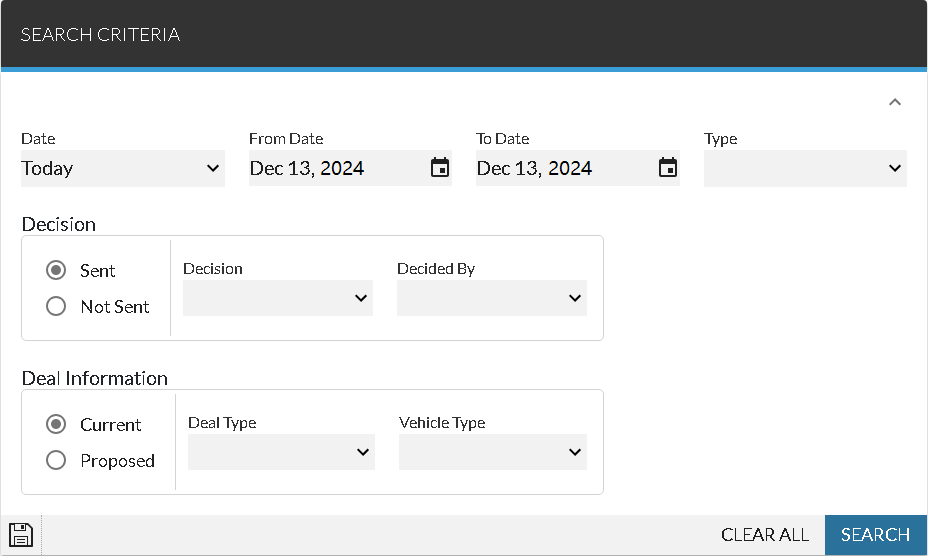
To search for service leads, enter criteria in the fields on the Search Criteria panel and click the SEARCH button. Service leads matching the search criteria display in the Results panel. To clear the entries in the fields on the Search Criteria panel, click the CLEAR ALL button.
Default search criteria can be saved to allow users to perform searches that are frequently requested using the same criteria. To save search criteria, enter the criteria on the Search Criteria panel and click the  (Save) icon. Once saved, the criteria are automatically entered in the Search Criteria panel when the Service Traffic screen is accessed.
Additionally, the information in the Upcoming Appointments panel can be used to automatically enter search criteria for a specific day and lead status. For example, to view additional details about hot leads for service appointments for tomorrow, click the number in the Hot Leads column in the Tomorrow row. Criteria matching the selection is automatically entered in the Search Criteria panel, and details about each pending service lead for tomorrow display in the Results panel.
The following items are available on the Search Criteria panel.
Date: Select the date range for which to view results. Click the  (Down Arrow) icon to display a list of valid entries. When a date range is selected, dates are automatically entered in the From Date field and the To Date field for the corresponding date range. Select Custom in this field to manually enter a date range in the From Date field and the To Date field.
From Date: Select the beginning date in a range of dates for which to view results. When this field is accessed, a calendar displays, where a date can be selected. If a date range other than Custom is selected in the Date field, this field automatically displays the date corresponding to the selected date range.
Note - Changing the entry in the From Date field automatically changes the entry in the Date field to Custom.
To Date: Select the ending date in a range of dates for which to view results. When this field is accessed, a calendar displays, where a date can be selected. If a date range other than Custom is selected in the Date field, this field automatically displays the date corresponding to the selected date range.
Note - Changing the entry in the To Date field automatically changes the entry in the Date field to Custom.
Type: Select the type of service leads, such as Appointments or Walk-Ins, for which to search. Click the (Down Arrow) icon to display a list of valid entries.
Sent: Select this option button to search for service leads for which a decision, such as Hot Lead or Manual Hot Lead, has been sent to FOCUS or the Customer application in the Digital Retail Platform.
Not Sent: Select this option button to search for service prospects for which a decision, such as Pending or Outside Parameters , has not been sent to FOCUS or the Customer application.
Decision: Select whether to search for leads based on if the leads were automatically sent, were manually sent, have yet to be sent, or were rejected. When the Sent option button is selected, this field is used to select the method by which a lead was sent to FOCUS or the Customer application. When the Not Sent option button is selected, this field is used to select whether a lead has not yet been decided or a lead is outside the lead generation criteria. Click the (Down Arrow) icon to display a list of valid entries.
Decided By: Select the method used to determine whether service leads were sent to FOCUS or the Customer application, such as whether the leads were sent automatically or if a specific user manually sent the leads by clicking the  (Send) icon on the Lead Sheet panel. Entries in this field vary based on the selection in the Decision field. Click the (Down Arrow) icon to display a list of valid entries.
Note - This field is only available when the Sent option button is selected.
Reason: Select the reason service leads were not sent to FOCUS or the Customer application. Click the (Down Arrow) icon to display a list of valid entries.
Note - This field is only available when the Not Sent option button is selected.
Current: Select this option button to search for service customers that are associated with an active vehicle deal. If no entries are made in the Deal Type field or the Vehicle type field, the selection of this option button does not affect the search results.
Proposed: Select this option button to search for service customers that are associated with a proposed vehicle deal. If no entries are made in the Deal Type field or the Vehicle type field, the selection of this option button does not affect the search results.
Deal Type: Select a deal type for the current or proposed vehicle deal, such as Cash or Finance. Click the (Down Arrow) icon to display a list of valid entries.
Vehicle Type: Select a vehicle type for the current or proposed vehicle deal, such as New or Used. Click the (Down Arrow) icon to display a list of valid entries.
Click here for a list of products that may be mentioned in this help file.